Hertz Connect
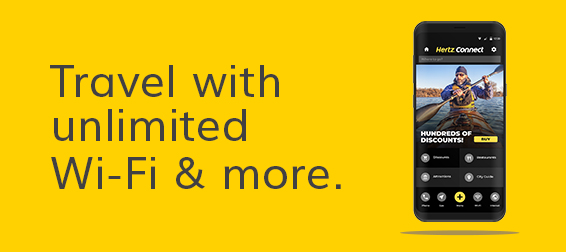
Hertz Connect+ makes your travel destinations more accessible. This enhanced mobile device* offers secure, unlimited Wi-Fi, precise navigation, local discounts and tickets and more.
| Features | Connect+ | Connect |
|---|---|---|
Unlimited Wi-Fi & hotspot (up to 5 devices) | ✓ | |
Free calls worldwide | ✓ | |
Online/offline GPS | ✓ | ✓ |
Tickets & Discounts | ✓ | ✓ |
City Guide | ✓ | ✓ |
Translator & Currency Converter | ✓ | ✓ |
Hertz Location Guide | ✓ | ✓ |
Free calls to Roadside Assistance | ✓ | ✓ |
Available in 11 languages | ✓ | ✓ |
*Requires additional purchase.
FAQs
1. What are the product benefits?
• GPS
• Worldwide free calls (Hertz Connect Plus)
• Internet Wi-Fi and hotspot up to five devices (Hertz Connect Plus)
• Tickets & discounts
• City guide
• Language translator, currency converter, and games
• Includes most U.S. and Canada Hertz locations/quick link to drive to check-in branch
• Free calls to Roadside Assistance, Helpdesk and city guide contents
• Available in eleven languages (English, Portuguese, French, German, Spanish, Russian, Italian, Mandarin, Cantonese, Korean, Japanese)
2. How can I rent the device?
When you arrive at the rental facility, ask one of our agents to add the product to your rental or book it online. Hertz Connect Plus requires additional purchase at the counter.
3. How many devices can connect to the Wi-Fi hotspot?
Up to 5 devices can connect to the device’s Wi-Fi hotspot simultaneously.
4. Is there a data limit on usage?
No, the device provides you with unlimited Wi-Fi and data.
5. Is the device portable?
Yes, the device is compact and will fit easily in your purse, backpack or briefcase.
6. Where is it available for rental?
It is available for rent at the rental counter at most U.S. and Canada locations. Please speak with one of our friendly customer representatives for further information.
